 Skip to content

Picture this: you’re cruising down the road, music on, maybe using your navigation, and suddenly your screen starts going haywire. The radio flips stations. The map zooms in and out. Climate controls start doing their own thing. That’s what we call ghost touch, and if your infotainment system has ever seemed like it’s doing things on its own, you’re not imagining it.
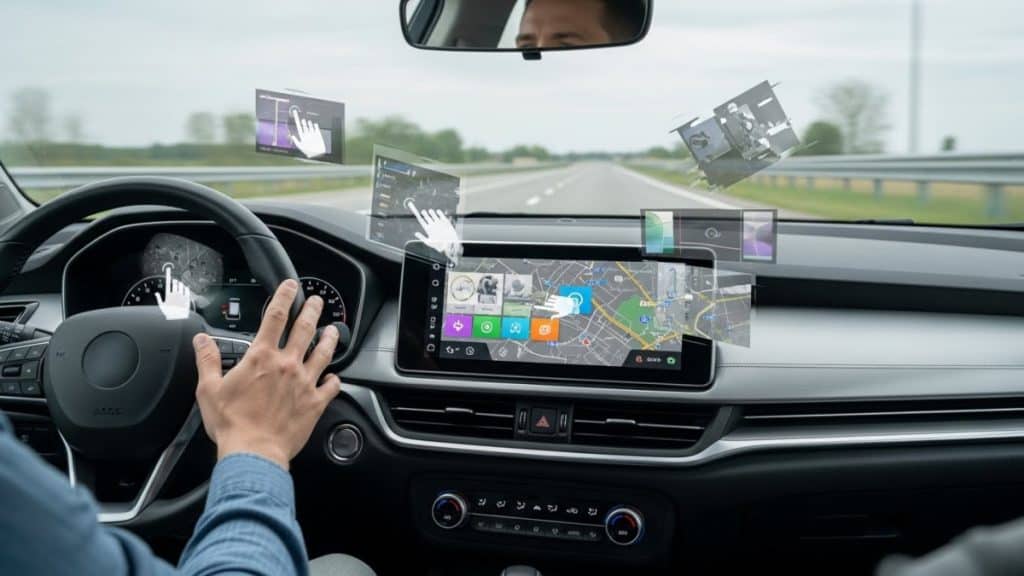
Ghost touch is more common than people think, and it can affect everything from entry-level sedans to high-end SUVs. The good news? In many cases, this is a fixable problem with no dealership visit or expensive repair bill required.
And beyond just being annoying, it is also a real safety issue because anything that steals your attention is a risk. If you’re looking for affordable ways to make a car safer, fixing a glitchy screen like this is honestly a solid place to start.
Let’s break it down: what ghost touch actually is, what usually causes it, and the steps you can take to fix it.
What Exactly Is Ghost Touch?
Ghost touch (also called phantom touch) happens when your infotainment screen registers inputs — taps, swipes, button presses — that you didn’t make. The system acts like someone’s poking the screen, even when no one is near it.
These are some typical symptoms:
- Random screen taps or options getting selected
- Menus opening or closing on their own
- Navigation zooming uncontrollably
- Audio volume going up and down
- Climate settings changing without input
- Apps switching without being touched
- A completely unresponsive screen (because it thinks it’s already being touched)
At best, it’s annoying. At worst, it makes the system unusable while you’re driving.
So what’s happening behind the scenes? In simple terms, the screen’s digitizer — the layer that senses your finger — is either getting false signals or misinterpreting them. That can come from a few different sources.
Common Causes of Ghost Touch
Let’s start with what causes ghost touch in the first place. Once you understand that, the fixes become a lot easier to work through.
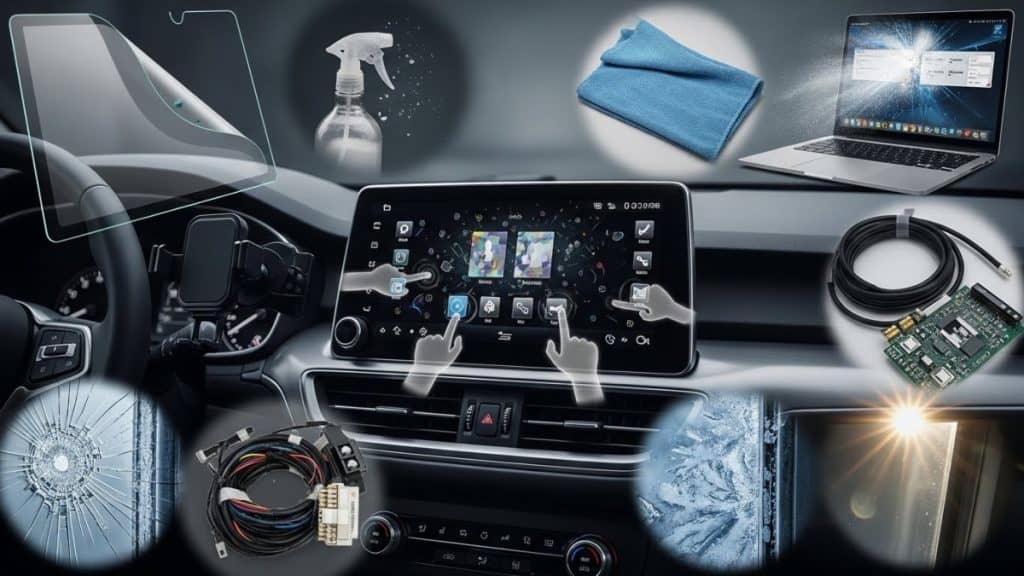
1. Screen Protectors or Aftermarket Accessories
If you’ve added a screen protector, especially one not made for your car’s specific system, it might interfere with the touch sensors. Same goes for dash covers, phone holders mounted near the display, or even cleaning products that leave behind residue.
These things can mess with sensitivity or trigger false inputs. It’s one of the easiest things to check and fix.
2. Software Bugs
Your infotainment system is basically a small computer. And like any software-based device, bugs can happen. Updates can introduce glitches, files can get corrupted, and over time, the system might just start behaving strangely.
This is especially common right after an over-the-air (OTA) update or after a dealer firmware update. Sometimes the update helps — sometimes it brings new problems.
3. Electrical Interference
Your vehicle’s electronics are all connected. Poor grounding, alternator noise, or electromagnetic interference (EMI) from nearby devices can throw off touchscreen behavior.
It might even be tied to when specific features are on — like heated seats, defrosters, or multiple devices charging at once.
4. Physical Damage or Moisture
Even a small crack in the glass, or trapped moisture from a humid day or a spilled drink, can mess with the digitizer. It doesn’t take a shattered screen to trigger ghost touch — a minor impact or some hidden condensation is enough.
5. Temperature Extremes
Too hot or too cold? That can cause touchscreens to act up. The digitizer may become overly sensitive in heat or sluggish and glitchy in freezing conditions.
6. Hardware Defect
Sometimes, it’s just a bad screen or a failing component — maybe the touchscreen controller board, maybe the cable behind the display. If something in the hardware fails, ghost touch might appear and get worse over time.
DIY Troubleshooting: Step-by-Step
Here’s what we recommend trying before bringing the car in for service. Start with the easy stuff, then work your way down the list.
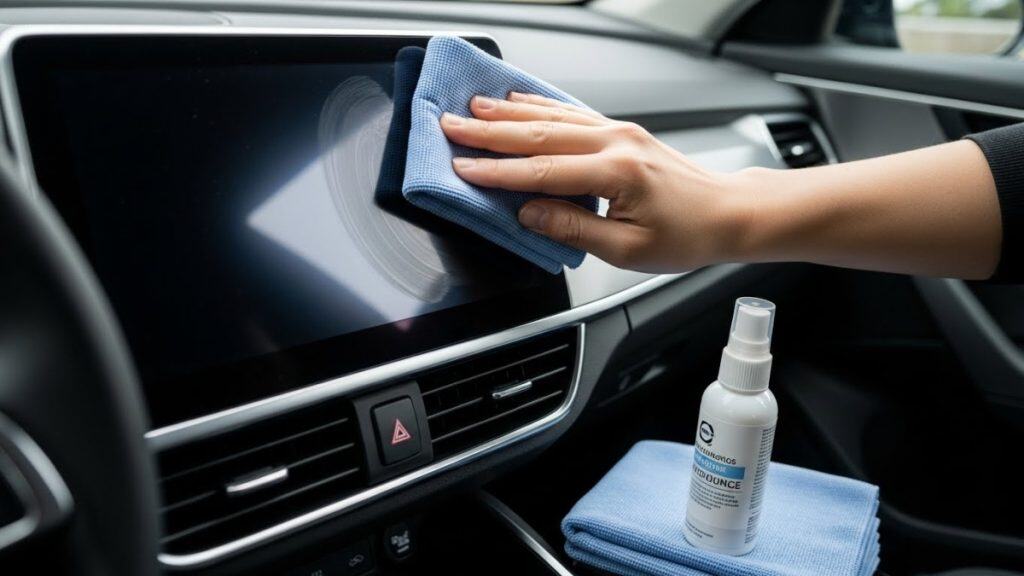
Step 1: Clean the Screen
Power off the vehicle, then gently clean the screen with a microfiber cloth. Use water or electronics-safe screen cleaner. Avoid alcohol-based or ammonia-heavy cleaners, and never spray directly on the screen.
Dirt, oils, and residue (especially around the screen’s edges) can cause false touches.
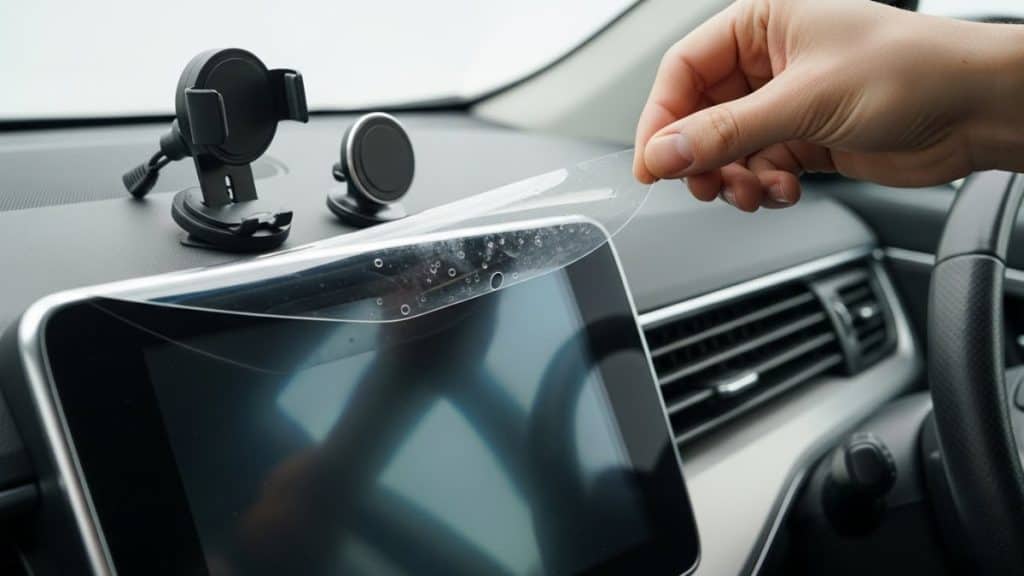
Step 2: Remove Screen Protectors or Accessories
If there’s a screen protector, peel it off. Even one that worked fine for months can start causing issues if the adhesive breaks down or bubbles form. Also remove any mounts or magnetic holders near the display.
Step 3: Soft Reset the Infotainment System
Each vehicle is different, but most infotainment systems can be rebooted by:
- Holding down the power button for 10-20 seconds
- Using a “Restart” or “Reboot” option in the settings
- Following a specific button combo from your owner’s manual
This clears out temporary glitches. It’s like restarting your phone.
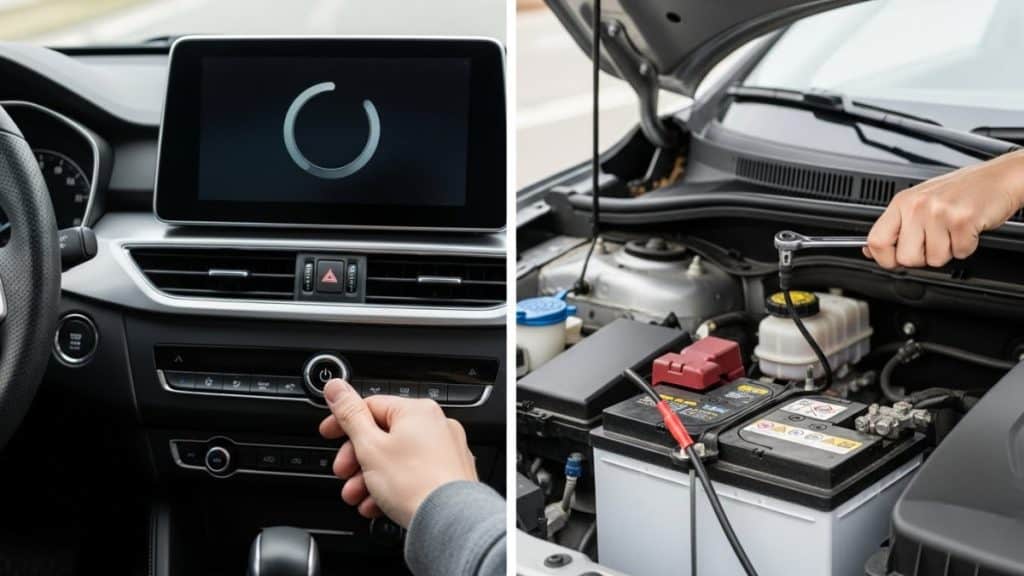
Step 4: Disconnect the Car Battery
If a soft reset doesn’t help, disconnecting the battery might. This will fully power-cycle the system:
- Turn off the car
- Disconnect the negative terminal on the battery
- Wait 10–15 minutes
- Reconnect and restart the car
Just be aware: this can reset some settings like the clock, radio presets, or seat memory.
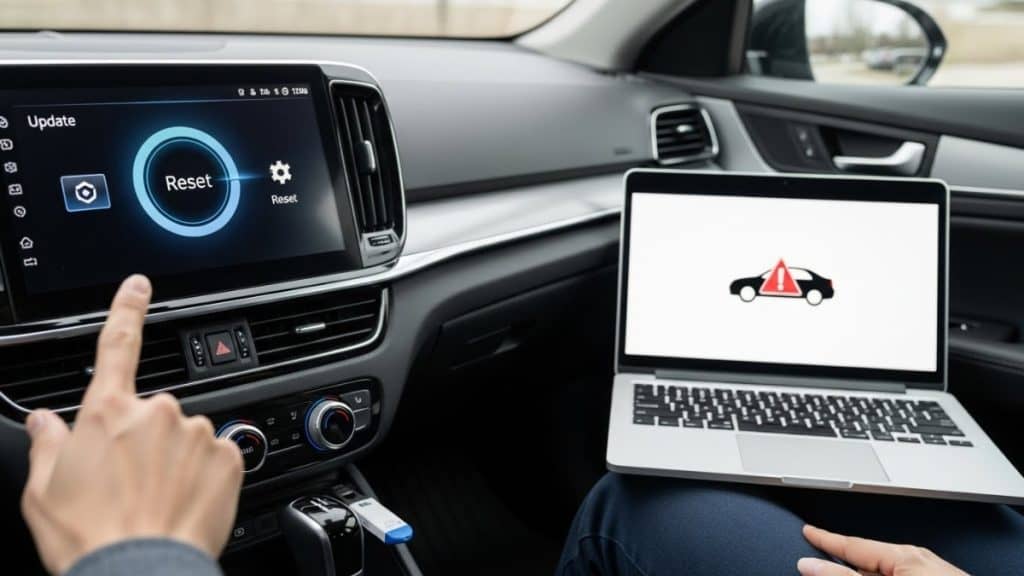
Step 5: Check for Software Updates
Manufacturers release software updates to fix issues like this. You can:
- Check the OEM’s website
- Visit your dealer and ask about TSBs or updates
- Use the infotainment system’s built-in update feature
Some vehicles require a USB drive and manual installation, others can do OTA updates.
Step 6: Factory Reset the System
Still having problems? Try a full factory reset:
- Go to the infotainment settings
- Find the option for “Factory Reset” or “Restore Defaults”
- Follow the confirmation prompts
This wipes everything — paired phones, saved addresses, radio presets — but it often clears up ghost touch caused by software issues.
Step 7: Look for Recalls or TSBs
Some ghost touch problems are widespread and known to the manufacturer. Many brands have issued recalls or Technical Service Bulletins (TSBs) to fix them.
Search the NHTSA website or call your dealer to check if your car is affected.
Known Brand-Specific Issues
Some automakers have had more issues with ghost touch than others. Let’s look at the most common ones.
Mazda (Mazda Connect)
If you drive a Mazda from 2014 to 2020, there’s a good chance you’ve heard of — or dealt with — ghost touch. Mazda’s infotainment system had known issues that became widespread enough to trigger recalls and extended warranties.
What we’ve seen:
- Repeated phantom touches in the same area of the screen
- Complete loss of touch response
- Freezing or locking up
Fixes and support:
- Mazda extended coverage to 7 years for affected vehicles
- Recall 4220F covers 2014–2017 Mazda3, Mazda6, and CX-5 models
- Multiple software updates were issued
- If needed, dealers replace the entire touchscreen assembly (often under warranty)
Some owners use the rotary “Commander knob” as a workaround to avoid touch input entirely.
Subaru (Starlink System)
Subaru’s Starlink system, particularly in 2016–2020 models, has its share of ghost touch complaints. Crosstrek, Outback, and Forester models seem to pop up the most.
What we’ve seen:
- Volume randomly changing
- Screen locking up or menus auto-switching
- CarPlay/Android Auto making it worse
Fixes and support:
- TSB 14-157-19R addresses Starlink touchscreen malfunctions
- Subaru issued several firmware updates (2020.09 or newer is preferred)
- Replacing USB cables and avoiding aftermarket chargers has helped some owners
In some cases, Subaru replaces the head unit under warranty if the issue can be confirmed.
Jeep / Chrysler / Dodge / Ram (Uconnect)
Vehicles under the FCA umbrella that use Uconnect — especially with 8.4-inch screens — have had repeat issues with ghost touch and screen delamination.
What we’ve seen:
- Buttons pressing themselves
- Volume and phone functions behaving erratically
- Apps opening on their own
Fixes and support:
- TSB 08-074-19 addresses touchscreen response problems
- Uconnect resets: hold power and volume knobs together for 10+ seconds
- Software version 18.45.51 or later improves performance
Some vehicles require hardware replacement, particularly if the screen has begun to separate (delaminate).
GM (Chevy, GMC, Buick, Cadillac)
General Motors vehicles with MyLink and IntelliLink systems aren’t immune, especially 2016–2019 Malibus, Equinoxes, and Cruzes.
What we’ve seen:
- Touch inputs registering on screen edges
- Screen freezing mid-use
- Inconsistent response from icons
Fixes and support:
- Power button reboot (hold for 10 seconds)
- USB-based updates via the GM Owner Center
- Some dealers replace faulty touch panels under warranty
Other Brands at a Glance
- Honda/Acura: 2016–2018 Civics and Accords have seen issues. Honda released software updates.
- Toyota/Lexus: Ghost touch is rare, but a few 2018–2020 Entune 3.0 systems were buggy. Usually fixed with firmware updates.
- Ford: SYNC 3 systems had minor ghost touch reports. USB update support available.
- Nissan: InTouch units in 2017–2019 models have shown symptoms. Often fixed by replacing the screen or updating software.
- Tesla: Even with their advanced displays, occasional ghost touch issues happen, usually corrected by OTA updates.
When It’s Time to Get Help
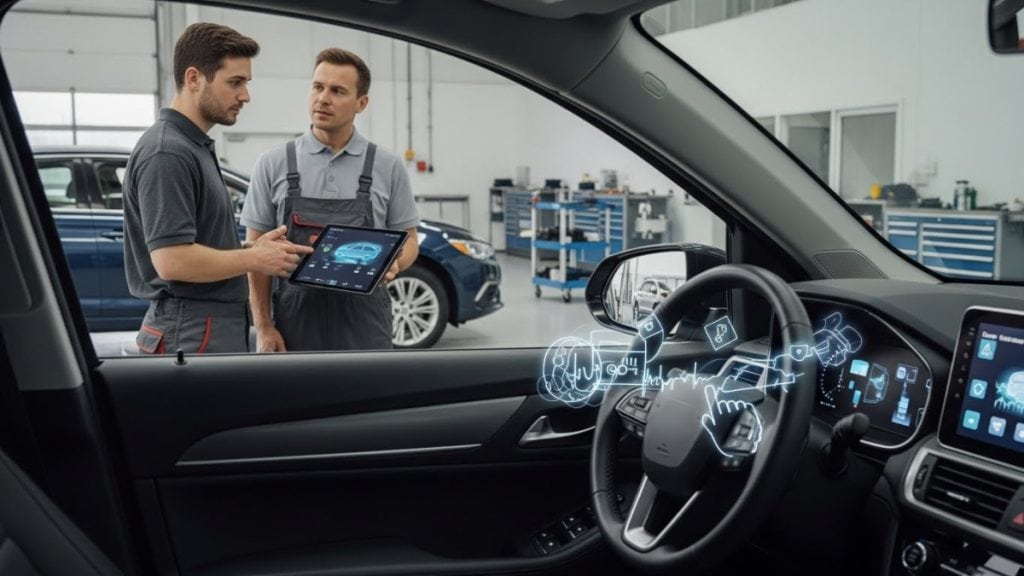
Most ghost touch issues can be fixed at home — but not all. Here’s when it makes sense to bring in a pro.
Time for the Dealership If:
- You’ve tried all the above steps, and the issue persists
- The screen is cracked, discolored, or visibly damaged
- The problem is getting worse over time
- You’re noticing electrical issues elsewhere in the vehicle
- Your car is still under warranty
What to Expect
- Diagnostic scan to check for errors and electrical problems
- Software update or full reset
- Replacement of touchscreen, digitizer, controller board, or head unit if needed
Costs vary, but some head units can run $300 to $2,000 if not under warranty.
If a recall or TSB is covering your issue, the repair might be free.
Get the Best Service
- Document everything: Take videos of the issue, note when it happens, and track weather or electrical use.
- Be specific: Don’t just say “my screen’s glitching.” Instead, describe what part of the screen is affected and how often.
- Ask about recalls and TSBs: Be direct. A good advisor will check your VIN for you.
- Don’t hesitate to get a second opinion: Especially if the first shop quotes a high price or can’t replicate the issue.
Preventing Future Ghost Touch Issues
A few habits can go a long way:
Maintenance Tips
- Clean the screen regularly (with proper materials)
- Keep your infotainment software up to date
- Avoid exposing the screen to extreme heat or cold
Usage Habits
- Don’t press hard — the screen isn’t pressure-sensitive
- Keep drinks and liquids well away from the dash
- Use high-quality screen protectors, if any
- Spray cleaners onto a cloth, not directly onto the screen
Electrical Best Practices
- Maintain your car’s battery and electrical system
- Don’t overload the vehicle with aftermarket electronics
Warranty Awareness
- Report even small issues while under warranty
- Keep service records and update receipts
- Consider extended coverage if infotainment failures are common on your model
Wrapping It Up
Ghost touch might feel like your car’s haunted, but in most cases, the fix is right in front of you. From cleaning the screen to updating software or checking for factory defects, there’s usually a way to get your infotainment system back under control.
Try the simple stuff first. If that doesn’t do it, check for recalls or dig into software versions. And if you need help, go in informed and ready — that’s the key to getting the problem solved quickly and without getting overcharged.
Stay sharp, keep your gear clean, and let’s keep that drive glitch-free.


